What Is Dolphin?
Dolphin is an emulator for two recent Nintendo video game consoles: the GameCube and the Wii. It allows PC gamers to enjoy games for these two consoles in full HD (1080p) with several enhancements: compatibility with all PC controllers, turbo speed, networked multiplayer, and even more!
1.Installation
1.1 Debian Based (Ubuntu,Mint,Debian)
sudo apt update
sudo apt install dolphin-emu
1.2 Arch Linux Based (Arch,Manjaro,Cachyos)
sudo pacman -S dolphin-emu1.3 Fedora Based (Fedora,Bazzite)
sudo dnf install dolphin-emu2.Setup & Configuration
Upon launching Dolphin Emulator for the first time, you will be presented with the main user interface. Follow these steps to optimize your visual performance and backend settings:
Access Graphics Settings: Click the Graphics button located on the main toolbar.
Select Graphics Backend: Locate the Backend dropdown menu under the General tab and switch it to Vulkan for optimal performance on modern hardware.
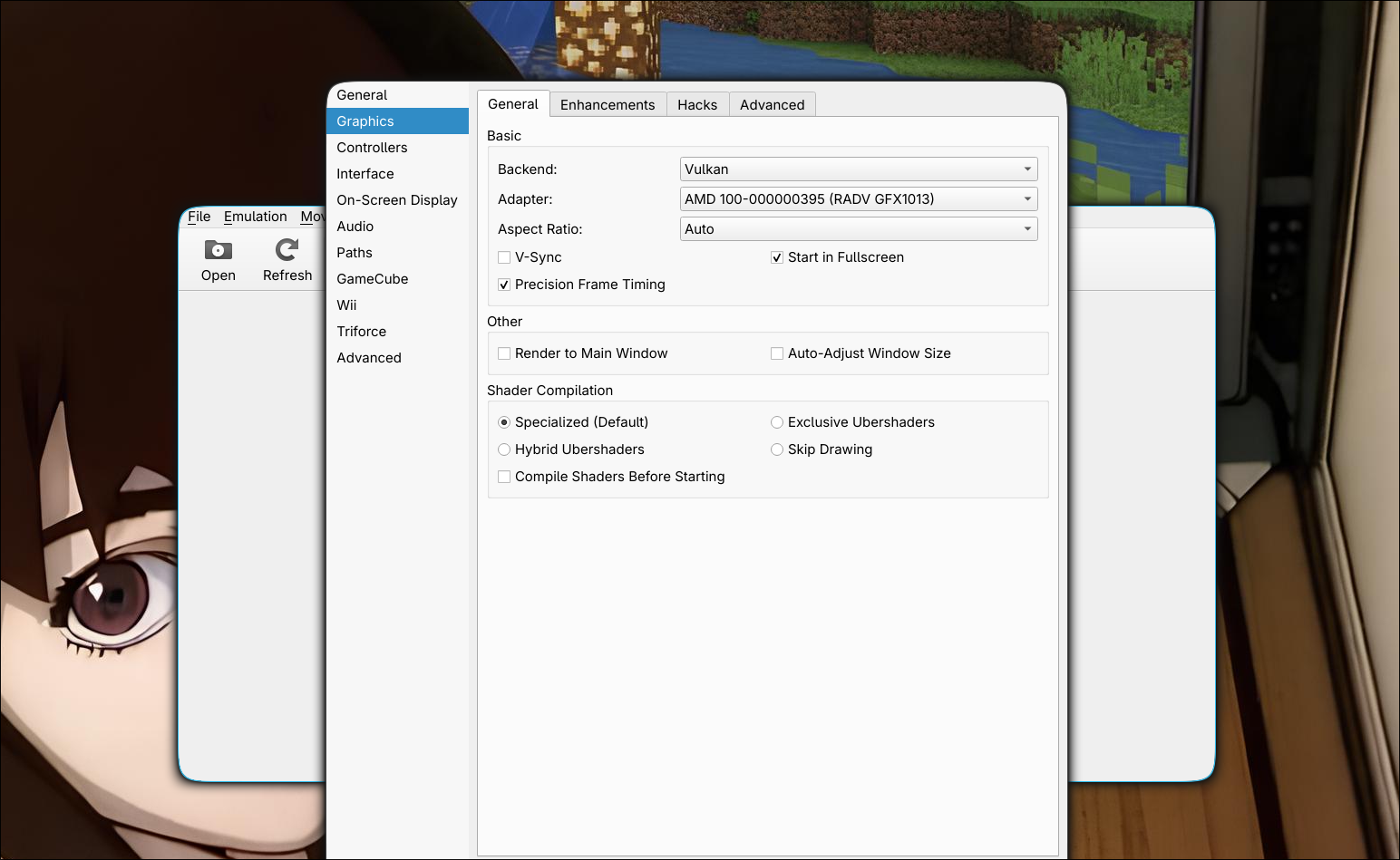
Once the graphics backend has been established, navigate to the Enhancements tab within the Graphics Configuration window. This section allows you to scale the visual fidelity beyond original console limitations.
Internal Resolution: Set this according to your display's native resolution. For a modern crisp presentation, 2x Native (720p) or 3x Native (1080p) is recommended, provided your graphics card can handle the increased load.
Anti-Aliasing: Enable MSAA (Multi-Sample Anti-Aliasing) or SSAA (Super-Sample Anti-Aliasing) to smooth out jagged edges on 3D geometry. If you experience performance drops, revert this setting to None.
Anisotropic Filtering: Set this to 16x or 8x to significantly improve the clarity of textures viewed at sharp angles (such as roads, floors, or distant landscapes) with minimal performance impact on modern hardware.
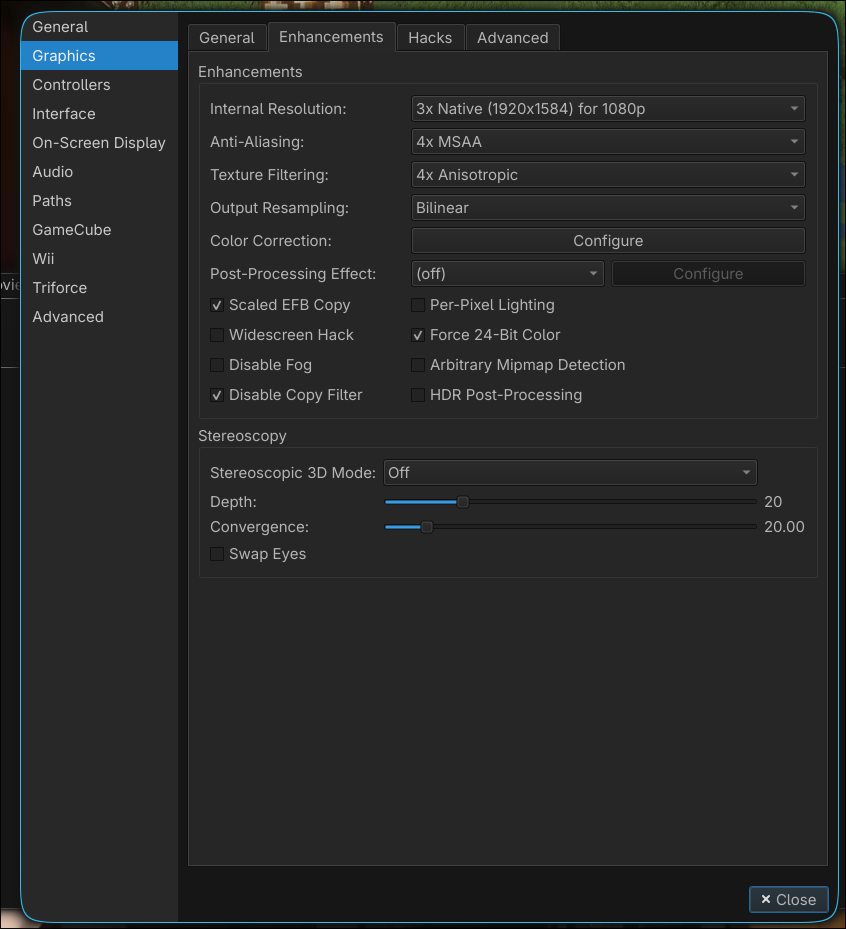
The configuration panel is split into two primary segments: GameCube Controllers and Wii Remotes.
Select Controller Type: Next to the desired player port (e.g., Port 1), open the dropdown menu. Choose Standard Controller for GameCube emulation, or Emulated Wii Remote for Wii games.
Configure Input: Click the Configure button next to your selected controller type to open the mapping window.
Device Selection: At the top left of the mapping window, open the Device dropdown menu and select your connected input hardware (e.g., your keyboard or recognized gamepad).
Button Mapping: Left-click on any input field (such as A, B, or the Control Stick directions) and press the corresponding button or key on your physical device to bind it.
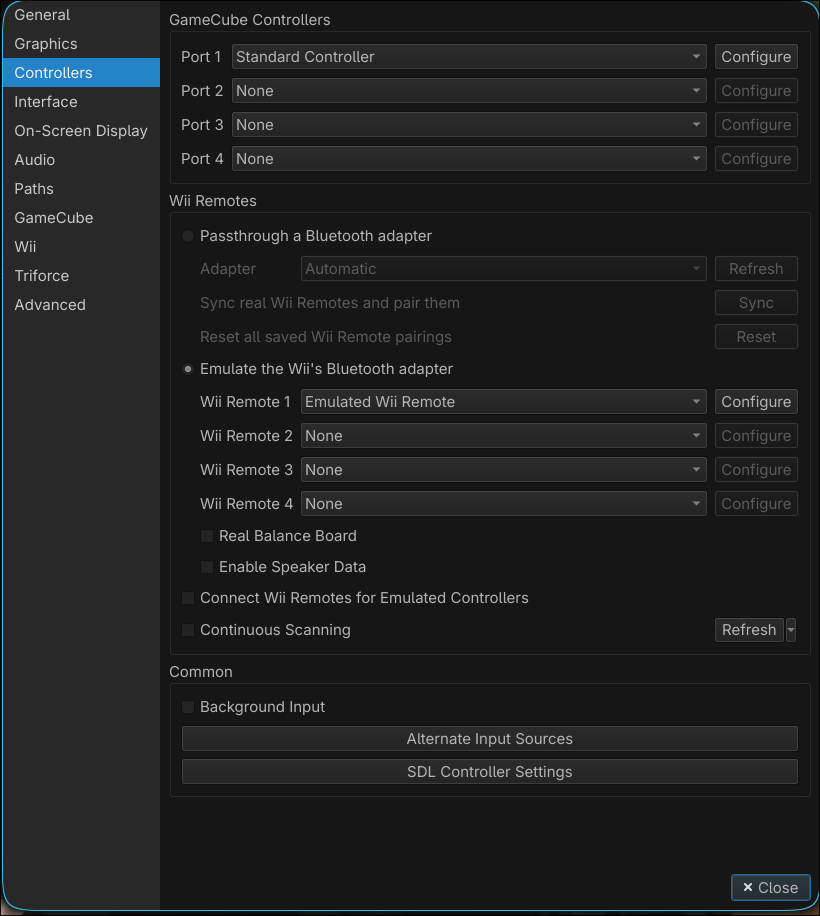
Managing Game Directories To keep your library organized and ensure Dolphin automatically populates your games list on startup, you will need to establish a dedicated directory for your game files.
Execute the following command in your terminal to create a dedicated directory within your Documents folder:
mkdir ~/Documents/dolphingames/Once your game library is placed in the folder, you must instruct Dolphin where to look for them.
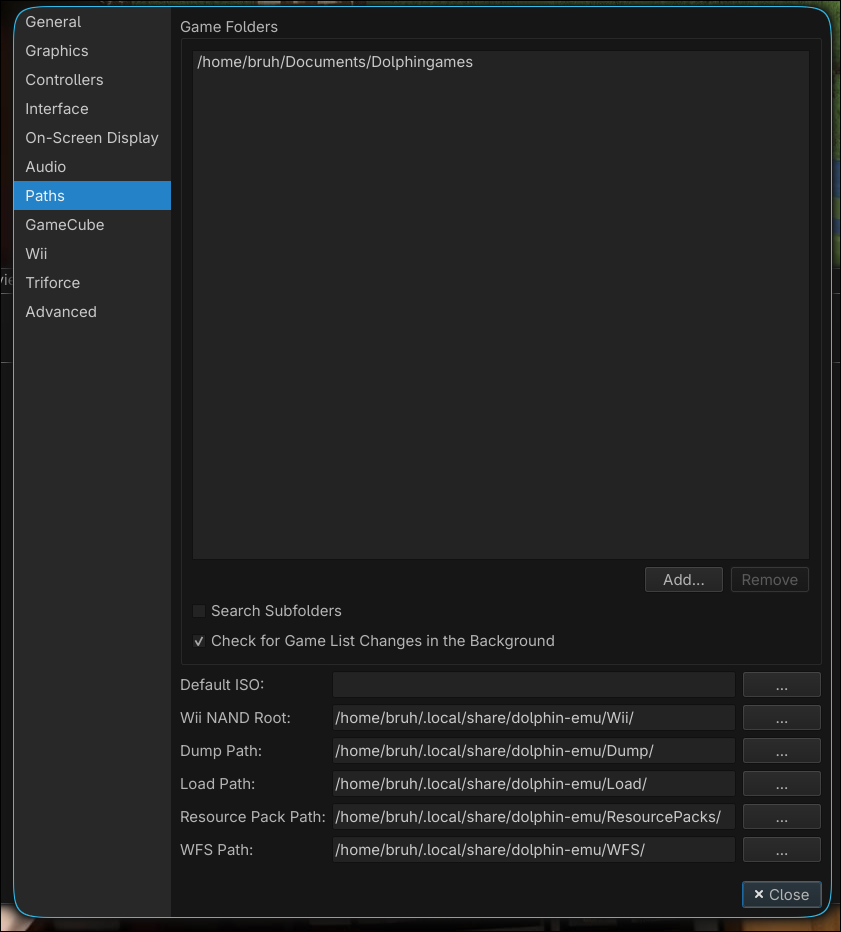
Note: If your game files do not appear immediately on the main dashboard after completing these steps, click the Refresh button on the main toolbar to manually scan the directory. Your setup is now complete and ready for gameplay.
Piracy Notice
This guide does not condone or support piracy in any form. To comply with copyright laws and support developers, you should exclusively use your own legally dumped game backups.
If you encounter performance issues, compatibility errors, or crashes, please consult the official documentation:
👉 Official Resource: Dolphin Wiki