
What Is Xemu?
Xemu is a free and open-source application that emulates the original Microsoft Xbox game console, enabling people to play their original Xbox games on Windows, macOS, and Linux systems.
Step 1. Auto Installation
Step 1.1 Debian Based
For Debian-based operating systems, you can install xemu via the official Personal Package Archive (PPA) by executing the following commands in your terminal:
sudo add-apt-repository ppa:mborgerson/xemu
sudo apt update
sudo apt install xemu
Step 1.2 Other Distributions (Arch Linux, Fedora, Bazzite, CachyOS)
For distributions outside the Debian family, the following automated bash script is provided. This script will automatically fetch, update, and deploy the latest official xemu AppImage release to your local bin directory:
curl -sSL https://raw.githubusercontent.com/rmuxnet/ps5-linux-guide/main/docs/public/scripts/Xemu/xemu.sh | bashStep 1.3 First Boot
Debian Based
Once the installation or update is complete, xemu can be launched at any time from your system's application menu, or directly from the terminal using the following command:
xemu & disown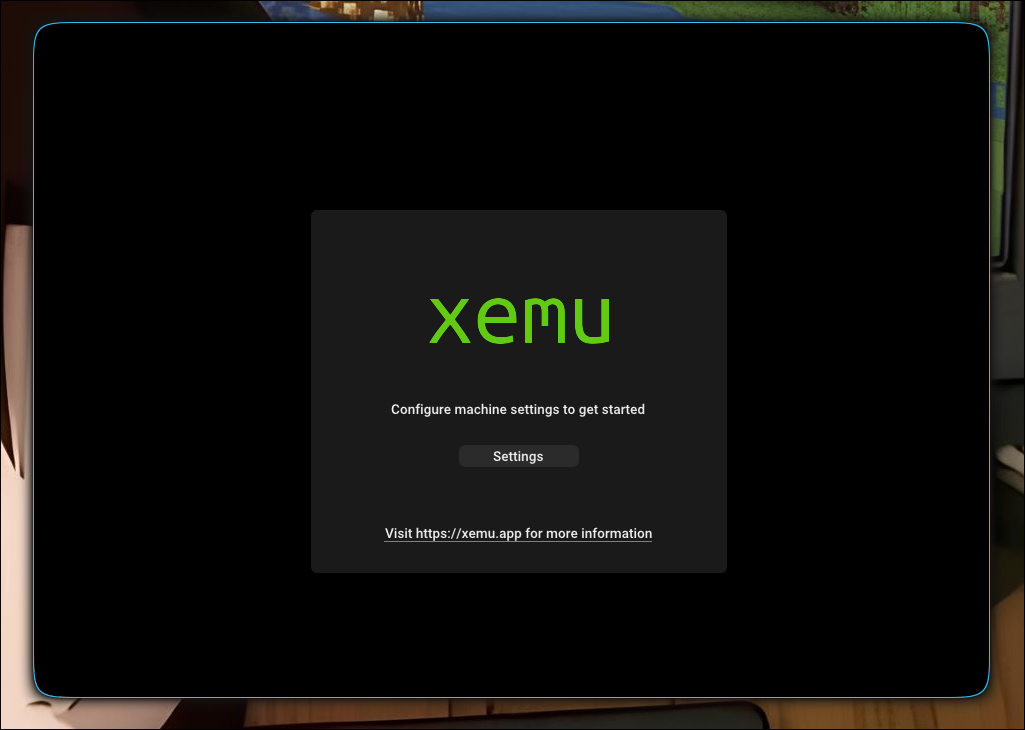
Other Distributions (Arch Linux, Fedora, Bazzite, CachyOS)
When utilizing the automated installation script provided above, xemu will automatically initialize and launch immediately following a successful installation or update sequence.
Step 2. Configuration
2.1 Setting the Games Directory
To set your games directory, click the folder icon to the right of the Games Directory field and select your preferred folder.
Alternatively, you can expedite this process by creating a dedicated directory via the terminal with the following commands:
cd Documents && mkdir -p xemugames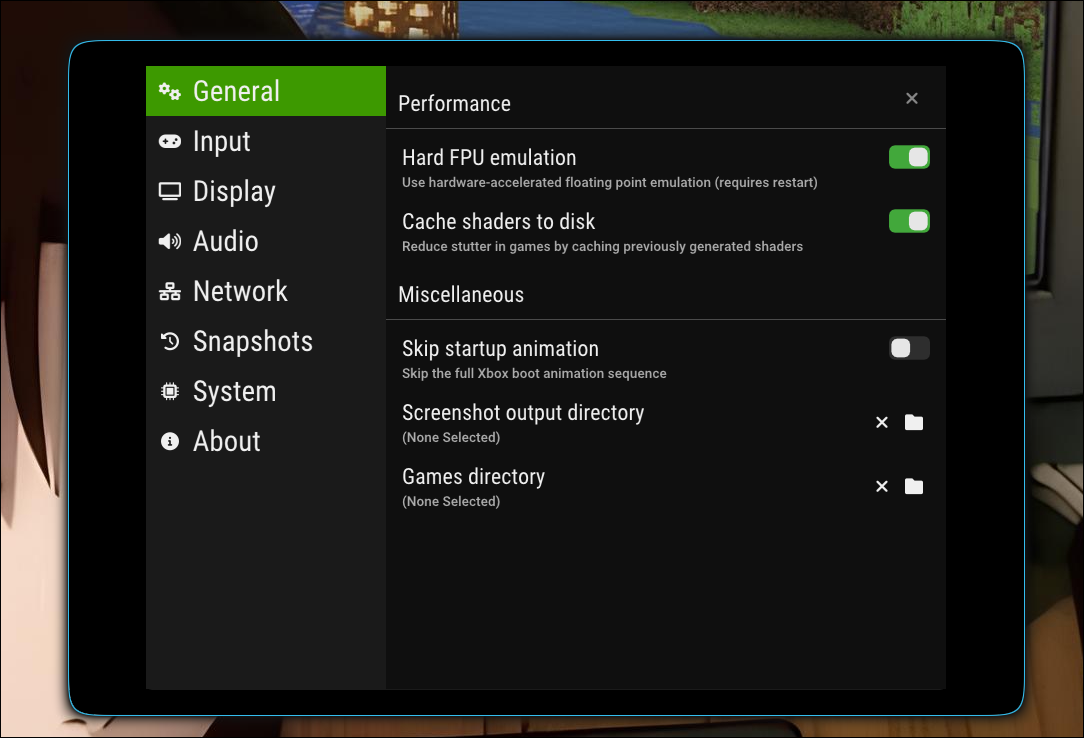
2.2 Input Device Configuration
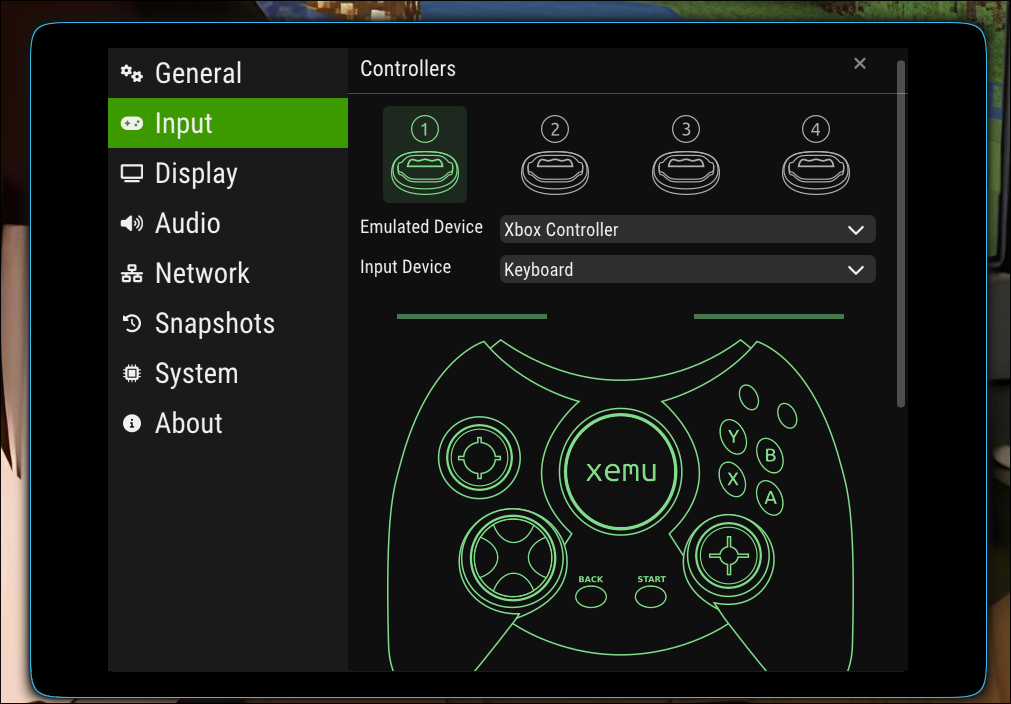
Navigate to the Input tab to configure your controller. Select your connected device (e.g., Xbox, PlayStation, or generic controller) from the input device dropdown menu to map your inputs.
2.3 Display and Graphics Settings
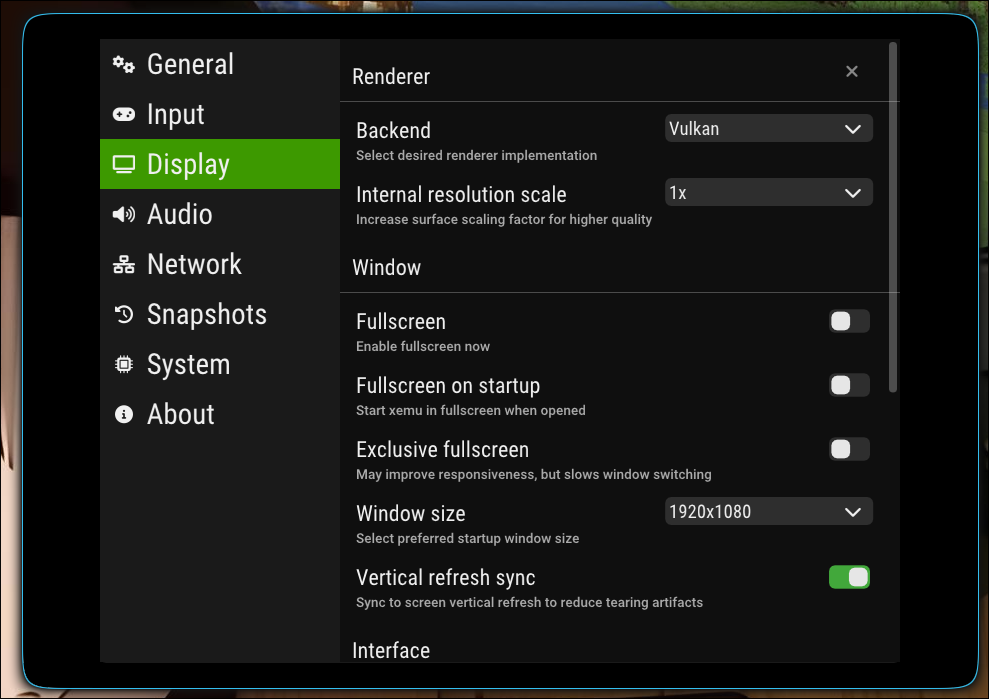
Navigate to the Display tab and select Vulkan as your graphics API for optimal performance. You can further customize the following options based on your hardware capabilities:
Window Mode: Fullscreen or Exclusive Fullscreen
Resolution Scale: Adjust to your display's target resolution
Vsync: Toggle on or off. Note: If you experience performance degradation or frame rate drops, disabling Vsync migth help.
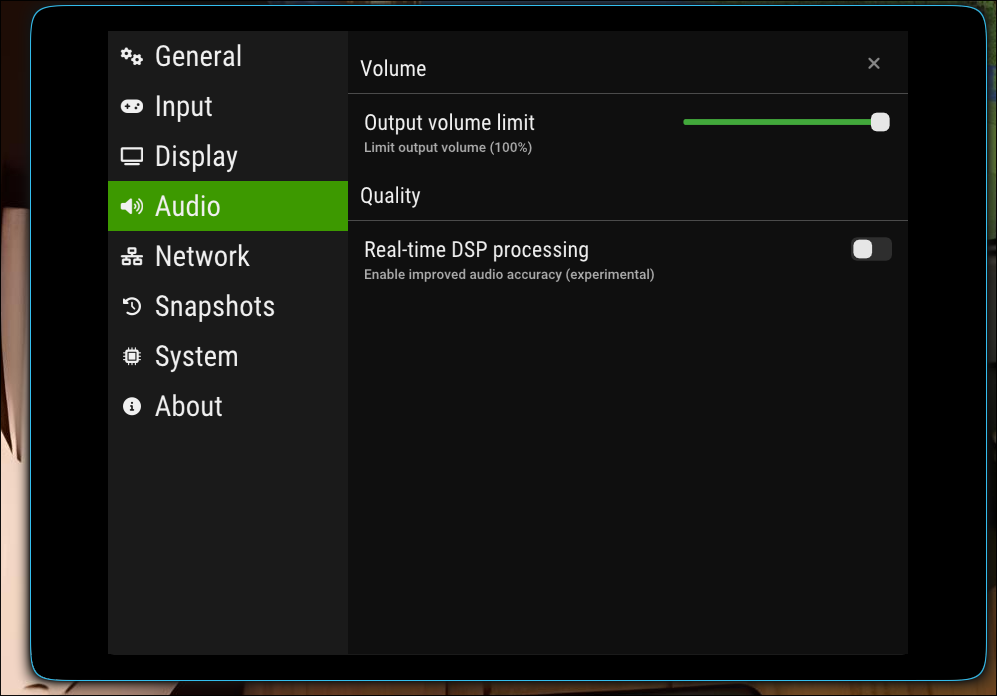
2.4 Audio Settings
Navigate to the Audio tab to adjust the system volume levels to your preference.
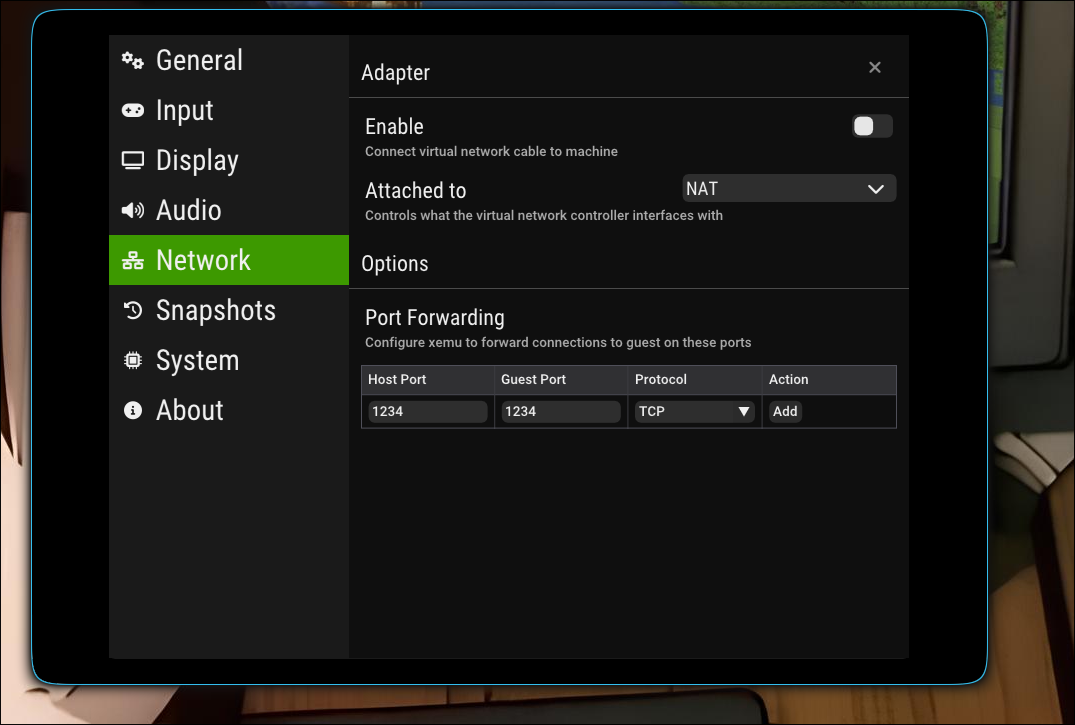
2.5 Network Settings
If you want to enable online play the official xemu wiki is reccomeneded to help you set it up , the link for it will be at the end of the page.
2.6 System Settings
To function correctly, xemu requires specific Original Xbox system files. Because these files are copyrighted material, they cannot be provided directly and must be dumped from your own console or acquired independently.
To keep your files organized, it is recommended to store them within subdirectories inside your main xemugames folder.
Open your terminal and run the following command to automatically generate separate, dedicated folders for your system files and hard disk image:
mkdir -p ~/Documents/xemugames/sysfiles ~/Documents/xemugames/hddHere is the structured table for system files:
| File Type | Description | Target Folder |
|---|---|---|
| MCPX Boot ROM | The 512-byte boot ROM from the Xbox motherboard. (Commonly named mcpx_1.0.bin). | ~/Documents/xemugames/sysfiles/ |
| Flash ROM (BIOS) | The system BIOS image (1024 KiB or 256 KiB). (e.g., Complex, Xecuter, or an official debug BIOS). | ~/Documents/xemugames/sysfiles/ |
| Hard Disk Image | A formatted .qcow2 virtual hard drive image representing the Xbox internal HDD. | ~/Documents/xemugames/hdd/ |
| EEPROM | The system EEPROM image. Note: xemu will automatically generate a default one for you if left blank. | Generated Automatically |
Step 3 Enjoy
The initial configuration of xemu is now complete. To initiate gameplay, navigate to your library directory, select your desired game image, and open it to begin the emulation sequence.
Official Resources & Reference Wiki
For advanced configurations, troubleshooting compatibility issues, or modifying emulator flags, please consult the official documentation:
- Official Documentation: Xemu User Guide & Documentation
WARNING
Strict Anti-Piracy Policy & Firmware Compliance
- System Files & Firmware: The
MCPX Boot ROM,Flash ROM (BIOS), andEEPROMare copyrighted properties of their respective rights holders. Users must legally dump these files from their personal, physical original Xbox hardware. Sharing, hosting, or requesting links to these files is strictly prohibited. - Game Images: This documentation does not support, endorse, or facilitate the distribution of copyrighted video game software (ROMs/ISOs). Games must be legally backed up from physical media owned by the user.
- Project Support: Do not open GitHub issues, support tickets, or community requests on official platforms using files acquired via illegal distribution channels. Hardware emulation support will only be provided for verified, legitimate software dumps.