
What Is DuckStation?
DuckStation is a PS1 Emulator aiming for the best accuracy and game support.
DuckStation Setup & Configuration Guide
Getting Started
This guide is split into two sections. First, we provide a universal script to automatically install DuckStation across all major Linux distributions (including Ubuntu, Mint, Fedora, Arch Linux, and CachyOS).
In the second section, we will walk you through configuring the emulator step-by-step so you can start booting your games.
1. Automated Installation
Run the following command in your terminal to automatically download the latest DuckStation AppImage, configure its shortcut, and set up the desktop application menu icon:
curl -sSL https://raw.githubusercontent.com/rmuxnet/ps5-linux-guide/main/docs/public/scripts/PS1/duckstation.sh | bash2. Configuring The Emulator
Step I : First Launch Of DuckStation
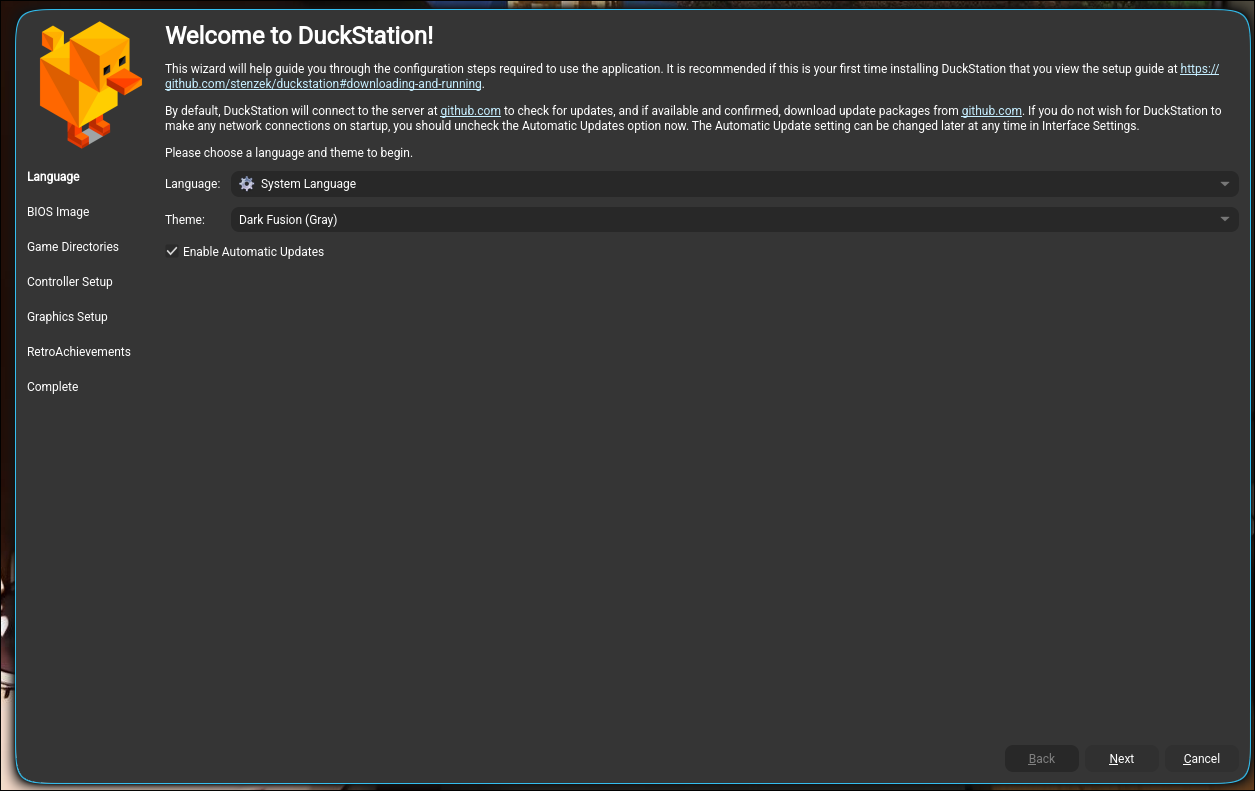
Upon launching DuckStation for the first time, you will be greeted by a Quick Setup Guide. Configure the following settings before proceeding:
- System Language & Theme: Select your preferred language and UI theme (or leave them at their default values).
- Automatic Updates: Ensure the automatic updates checkbox remains enabled so your emulator stays up to date.
Once configured, click Next to continue.
Step I.1 : Install PlayStation 1 Bios
Piracy Notice
This guide does not condone or support piracy in any form. To comply with copyright laws and support developers, you should exclusively use your own legally dumped bios.
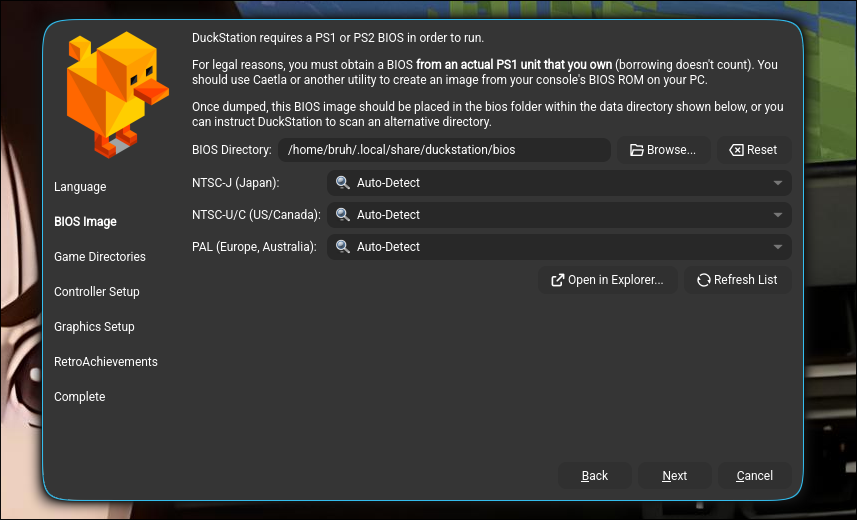
To legally play PlayStation 1 games, you must dump the BIOS from your own console. Different BIOS versions carry distinct regional compatibility advantages:
| Game Region / Type | Recommended BIOS | Description & Advantage |
|---|---|---|
| 🌍 All Regions (Best Choice) | PSXONPSP660.bin | Highly Recommended. Extracted from official PSP firmware. It is completely region-free, has the fastest boot times, and automatically handles US, European, and Japanese games. |
| 🇺🇸 North American Games | SCPH-1001.bin | Best for standard NTSC-U games. Use this if you want the classic, nostalgic original PS1 boot sound and logo sequence. |
| 🇪🇺 European Games (PAL) | SCPH-5502.bin or SCPH-7502.bin | Essential for native PAL format releases to prevent game speed issues or screen tearing. |
| 🇯🇵 Japanese Imports | SCPH-5500.bin | Required for strict NTSC-J region-locked games that look for native Japanese hardware features to boot. |
Placing the BIOS and Auto-Detecting
Copy your chosen BIOS file(s) and paste them directly into DuckStation's default directory:
/home/username/.local/share/duckstation/bios Click the Refresh List button on the right side of the window.
DuckStation will scan the folder, detect your BIOS, and automatically assign it to the correct gaming regions in the background. You can leave the dropdown slots alone once it registers the files!
Click Next to move on to the Game Directories setup.
Step I.2 : Games Location
Piracy Notice
This guide does not condone or support piracy in any form. To comply with copyright laws and support developers, you should exclusively use your own legally dumped game backups.
Optimal File Formats
DuckStation handles a variety of raw image files, but using standard loose formats like uncompressed .bin + .cue pairings can quickly clutter your directory.
For a streamlined library, it is highly recommended to compress your library into .chd (Compressed Hunks of Data) format. It condenses multi-track games down into a single, highly compressed file without loss of quality, saving massive disk space on your Linux setup.
Now here you will have to choose where you will store your games, your games should be stored on the partiton where you have much more space or if you only have one on that one , you can make a directory named ps1games for example in /home/username/Documents/ps1games, and just click yes when it asks you to scan recusively and click next
Steps I.3 & I.4: Controllers and Graphics
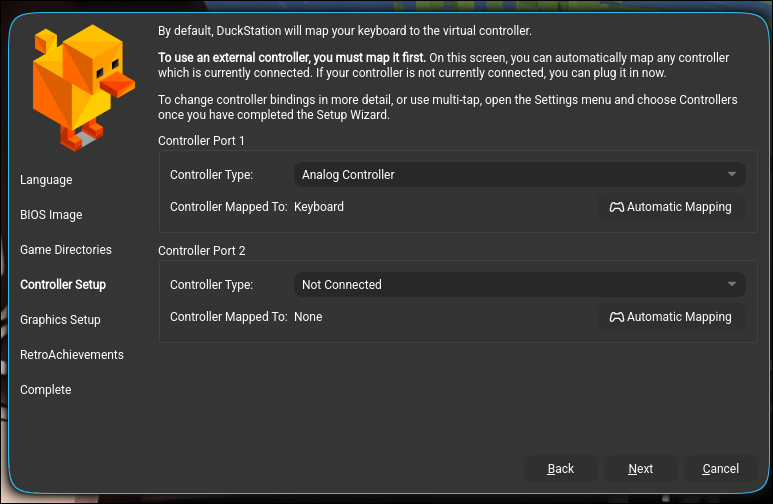
The next two windows cover your input preferences and visual configuration:
- Controller Setup: Connect your gamepad and use the Automatic Mapping tool to quickly bind your buttons.
- Graphics Setup: Choose your rendering engine (Vulkan is highly recommended for modern Linux systems) and adjust your internal resolution scaling based on your hardware capabilities (e.g., 2x for 720p, 4x for 1080p).
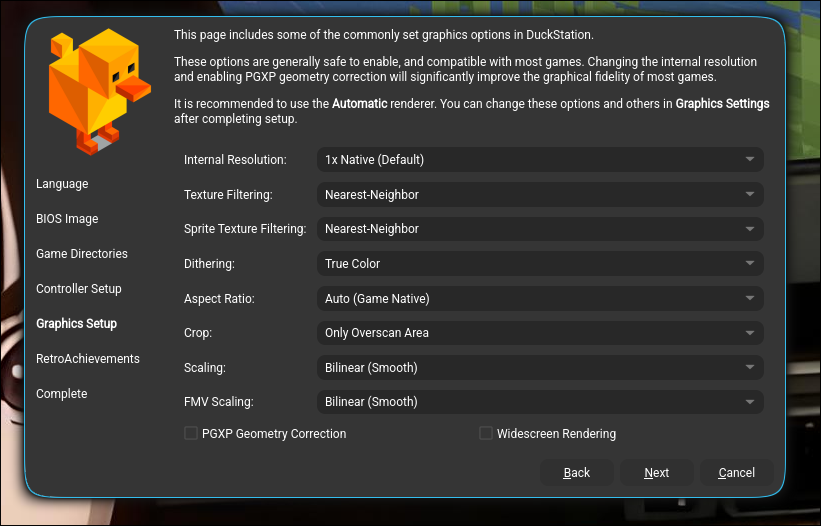
Feel free to tweak these choices to match your hardware preferences, then click Next to complete the wizard!
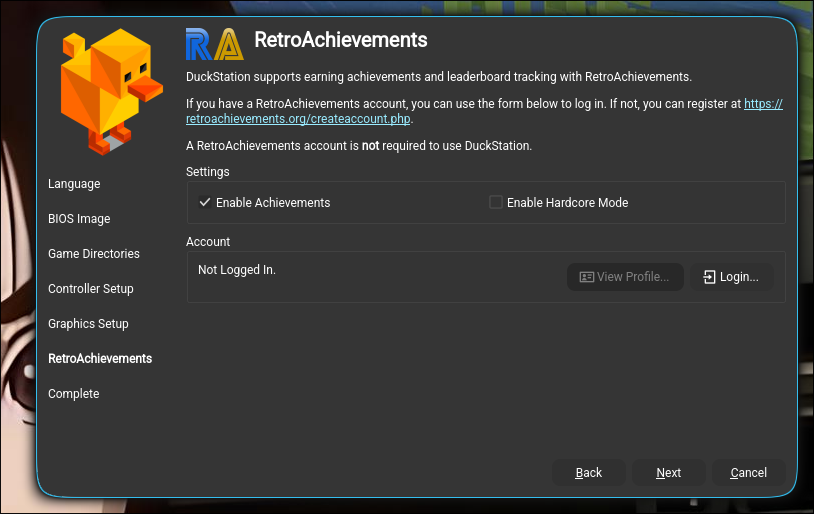
Step I.5: Achivements setup
DuckStation features native integration with RetroAchievements, allowing you to earn classic trophy-style achievements and track your placements on global leaderboards for supported PlayStation 1 titles.
💡 Note: An account is completely optional. If you do not care about achievements, simply uncheck Enable Achievements and click Next.
If you want to use this feature:
- Log In / Register: Enter your existing account details or head over to the official RetroAchievements Website to create a free profile.
- Configure Modes: Toggle your preferred tracking rules (Standard vs. Hardcore) based on your preferred playstyle.
Steps I.6 & I.7: Finishing Setup
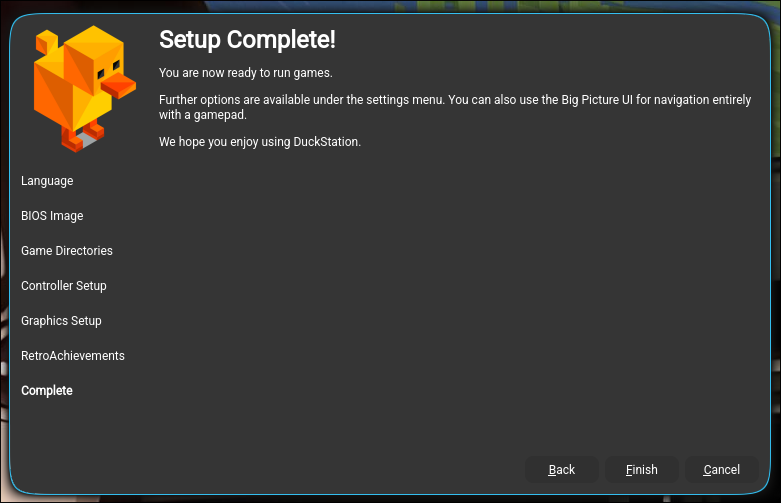
- Complete the Wizard: You have successfully configured all the necessary settings! Simply click Next on the summary screen to close the setup guide.
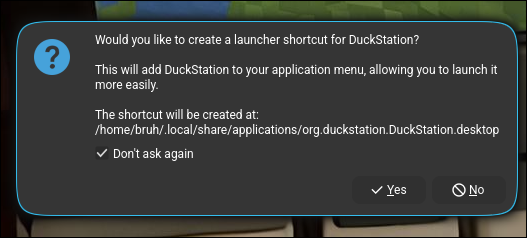
- Desktop Shortcut Prompt: Upon exiting the wizard, DuckStation will ask if you want to create a desktop shortcut icon. Check "Do not ask me again" and click Yes to add a launcher directly to your desktop workspace.
Step 3. Playing Your Games
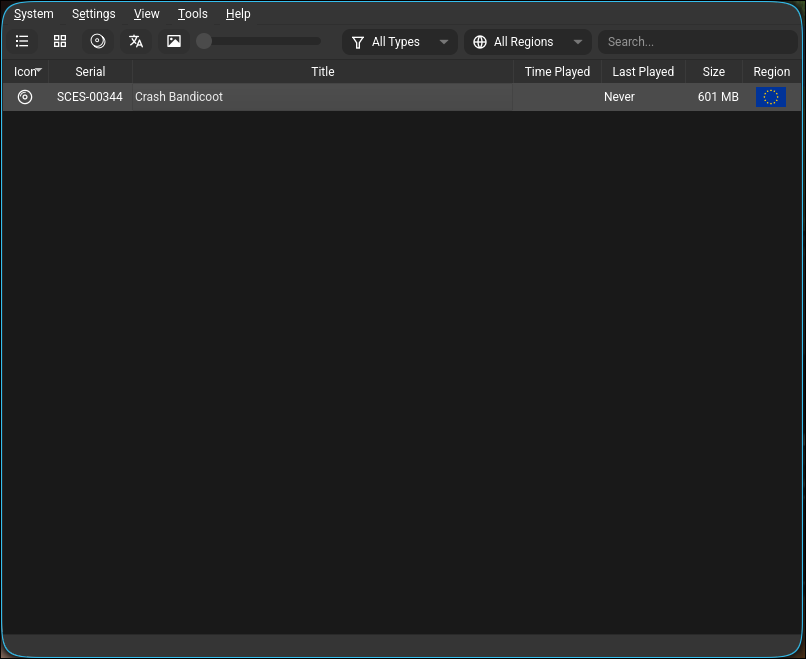
Congratulations! You have successfully installed and configured DuckStation. Your game collection will now appear in the main library grid. To begin playing, simply double-click your game of choice and enjoy!
Technical Support Disclaimer
This guide is an independent community resource and is not affiliated with, endorsed by, or linked to the official DuckStation development team or its creator, Stenzek. As such, we cannot provide direct technical support or software bug fixes for the emulator.
If you encounter game crashes, graphical glitches, or performance issues, please consult the official documentation or the community tracking lists:
👉 Official Resource: DuckStation GitHub 👉 Community Database: DuckStation Wiki on RetroDeck